
Convert many MSG files to PDF
Drop a folder of Outlook emails and get every one as a PDF, in one ZIP. Free, with no account and no plan to buy.
Quick answer
To convert many MSG files to PDF at once, choose your paper size and file names, then drop the .msg files or their folder, up to 500 at a time. Every email becomes its own PDF, and you download them all in one ZIP with a report.txt. A damaged file doesn't stop the rest: it's listed with the reason.
What you get
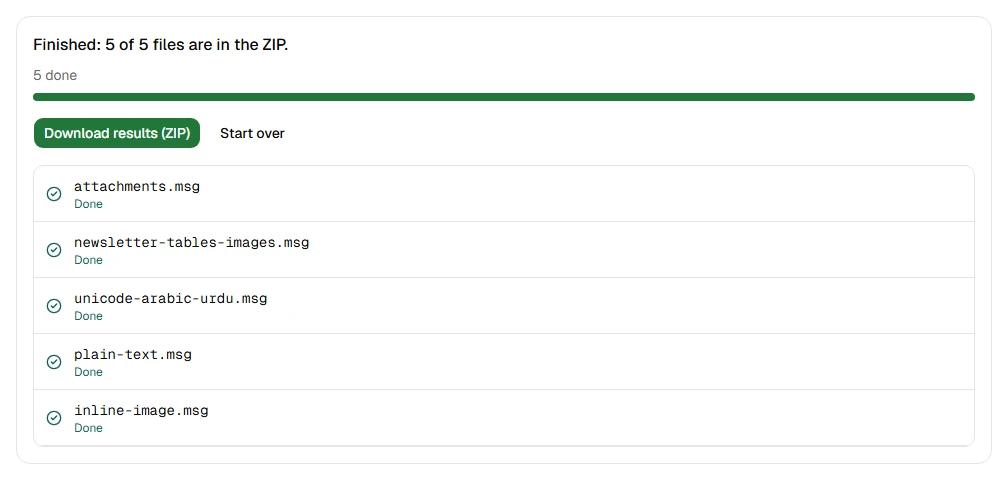
- Convert up to 500 emails at a time, a whole folder with its subfolders
- Name each PDF by subject, date and subject, or date, sender and subject
- Choose A4, Letter or Legal paper
- Keep or leave out the attachment list at the end of each PDF
- See which files couldn't be opened, and why, on the page and in report.txt
Step by step
- Step 1
Choose your settings
Paper size, how the PDFs are named, and whether each one ends with its attachment list.
- Step 2
Drop your .msg files or a folder
Or click Choose files or Choose a folder. Up to 500 files at a time.
- Step 3
Download one ZIP
Every email as a PDF, plus a report.txt listing anything that couldn't be opened.
Supported files and limits
| File | Up to | At a time |
|---|---|---|
| .msg (Outlook email) | 50 MB per file | Up to 500 files, 2 GB in total |
These are technical limits, so your browser doesn't run out of memory. There's no account, plan or fee.
Troubleshooting
If you see:
You chose 612 files. You can open up to 500 at a time. Choose fewer, then add the rest as another batch.
What to do: Split them into folders of up to 500 files and run one batch per folder.
If you see:
These files add up to 2.4 GB. You can open up to 2 GB at a time. Choose fewer, then add the rest as another batch.
What to do: Run the files in two or more batches. Each batch makes its own ZIP.
If you see:
This is an EML file. This tool opens MSG files.
What to do: It's an email file, just another format. Open it from the homepage, which recognises every format, or with the tool for that format.
If you see:
This email file seems to be damaged, so we can't open it. Try saving or downloading the email again.
What to do: Save the email again from the app it came from. If it still won't open, use Report a problem: it sends the error code, never your file.
If you see:
This is a PDF, not an email file. Choose an MSG file.
What to do: Choose the email file itself, not a document that was attached to it or a printout of it.
If you see:
This file is 72.3 MB. Inboxglass opens email files up to 50 MB. If it's a whole mailbox export, open single emails instead.
What to do: Single emails are rarely over 50 MB. If it's a whole mailbox, open it with the MBOX viewer, which takes up to 20 GB.
Something else? Use the problem report form. It sends the error code and your description, never your file.
Other ways to do it
Classic Outlook for Windows
Open each email, choose File › Print, then Microsoft Print to PDF as the printer, one email at a time.
When it makes sense: You only have a few emails and Outlook is installed.
Outlook on the web
Open each email, choose More actions › Print › Print, then Microsoft Print to PDF as the printer, one at a time.
When it makes sense: You only have a few emails, still in your mailbox.
Your privacy
Your files are processed on your device and never uploaded. The tool runs in a sealed, ad-free area of the page that nothing else on the page can access, and it can't connect to other websites. Nothing about your emails is stored on our domain. We can't see your emails — they never reach our servers.
Check it yourselfFrequently asked questions
How do I convert many MSG files to PDF at once?
Drop the files, or the folder they're in, on this page: up to 500 at a time. Every email becomes a PDF, and you download them all in one ZIP.
Can I batch convert Outlook emails to PDF for free?
Yes. There's no account, plan or fee; the limits are technical, so your browser doesn't run out of memory. For more emails, run another batch.
How are the PDFs named?
By the email's subject, the date and subject, or the date, sender and subject, as you choose. Dates are written year-month-day, so the files sort by date. Characters that aren't allowed in file names are replaced, long names are shortened, and two PDFs with the same name become "name.pdf" and "name (2).pdf".
What if some files can't be opened?
The rest carry on. Each file that couldn't be opened is listed on the page with the reason, and in report.txt inside the ZIP. You can try the failed files again before you download.
Can I add a whole folder?
Yes. Drop the folder on the box above or click Choose a folder. Emails in its subfolders are included, and system files like .DS_Store are skipped.
Can I select or copy the text in the PDFs?
Not yet: each page is a picture of the email, so it looks exactly like it does on screen. If you need the text, use MSG to TXT.
Is my email uploaded anywhere?
No. Your files are processed on your device and never uploaded. We can't see your emails — they never reach our servers. Each tool runs in a sealed, ad-free area of the page that other code on the page can't access, and nothing about your emails is stored on our domain.
Related tools
Last updated by The Inboxglass team