
Split an MBOX file
Make one huge mailbox into smaller ones: by size, year, month, sender's domain or Gmail label. Every email keeps its exact bytes. Free, with no account.
Quick answer
To split a large MBOX file, choose it above, then pick how to split it: by size, year, month, sender's domain or Gmail label. You see every new file and its size first, then download them all in one ZIP. Every email is copied byte for byte, and even a 20 GB mailbox needs little memory.
What you get
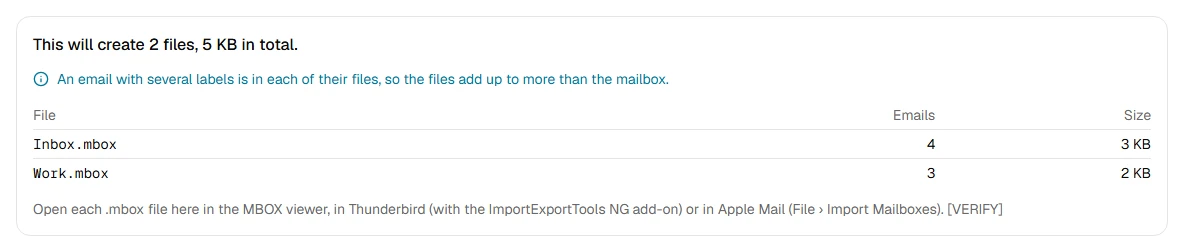
- Split by size: 100 MB, 500 MB, 1 GB or 2 GB files
- Split by year or by month
- Split by the sender's domain, like example.com
- Split by Gmail label, like Inbox, Sent or Work
- See every file and its size before splitting
- Keep every email exactly as it was
Step by step
- Step 1
Choose your .mbox file
From Gmail Takeout, Thunderbird or Apple Mail, up to 20 GB.
- Step 2
Choose how to split it
By size, year, month, sender's domain or Gmail label. You see each file and its size before anything is made.
- Step 3
Download the ZIP
The smaller mailboxes in one ZIP. Open them in the MBOX viewer or your email app.
Supported files and limits
| File | Up to | At a time |
|---|---|---|
| .mbox (a whole mailbox) | 20 GB, and 50 MB per email in it | One mailbox |
These are technical limits, so your browser doesn't run out of memory. There's no account, plan or fee.
Troubleshooting
If you see:
This isn't an MBOX mailbox. Choose an .mbox file, like the one in a Gmail Takeout export. For a single email, use the EML viewer.
What to do: In a Google Takeout export, the mailbox is the .mbox file inside the ZIP: unzip it first. From Apple Mail, choose the mbox file inside the exported folder.
If you see:
This file is 24.1 GB. Inboxglass opens mailboxes up to 20 GB. If your export is bigger, choose fewer labels in Google Takeout and export again.
What to do: In Google Takeout, export fewer labels or a shorter period, so each file stays under 20 GB.
If you see:
We couldn't read this file. If it's in cloud storage or on a network drive, save it to your device first, then try again.
What to do: Download the file to your computer or phone first (from OneDrive, Google Drive, Dropbox or a network folder), then choose that copy.
If you see:
This email couldn't be read from the mailbox file. If the file was moved or changed, choose it again.
What to do: The mailbox file was moved, renamed or changed since it was opened. Choose it again.
Something else? Use the problem report form. It sends the error code and your description, never your file.
Other ways to do it
Google Takeout, again
Export again and leave out what you don't need: Takeout lets you untick data under a button like All data included. It can't export a period of time.
When it makes sense: You can export again and only need part of your mail.
Thunderbird with ImportExportTools NG
Import the mailbox with the add-on, sort it into folders, then export each folder as its own .mbox file.
When it makes sense: You want to sort by your own rules first, and the mailbox fits in Thunderbird.
Your privacy
Your files are processed on your device and never uploaded. The tool runs in a sealed, ad-free area of the page that nothing else on the page can access, and it can't connect to other websites. Nothing about your emails is stored on our domain. We can't see your emails — they never reach our servers.
Check it yourselfFrequently asked questions
How do I split a large MBOX file?
Choose it on this page, pick a way to split it, check the preview, then download the smaller mailboxes in one ZIP.
How do I split a Gmail Takeout MBOX by label?
Choose Gmail label as the way to split. Each label becomes its own .mbox file, named after the label, like Inbox.mbox or Work.mbox.
My MBOX file is too big to import: what can I do?
Split it by size (for example 500 MB files) or by year, then import the smaller files one by one.
Is anything in the emails changed?
No. Each email is copied byte for byte. The only exception: if the very last email of your mailbox has no line break at its end, one is added so it can't run into the next file's first email.
Why do the files add up to more than my mailbox?
Only when splitting by Gmail label: an email with several labels, like Inbox and Work, is in each of their files, the way Gmail shows it.
How do I open the new files?
Open each .mbox file here in the MBOX viewer, in Thunderbird with the ImportExportTools NG add-on, or in Apple Mail with File, Import Mailboxes.
Is my email uploaded anywhere?
No. Your files are processed on your device and never uploaded. We can't see your emails — they never reach our servers. Each tool runs in a sealed, ad-free area of the page that other code on the page can't access, and nothing about your emails is stored on our domain.
Related tools
Last updated by The Inboxglass team