
Open EML files in your browser
Read a saved email and download its attachments. No email program and no account needed.
Quick answer
To open an EML file, drop it in the box above or click Choose a file. The email opens right here with its sender, recipients, date, formatting and attachments, which you can download one by one or as a ZIP. It works on Windows, a Mac, a Chromebook or a phone, without an email app or an account.
What you get
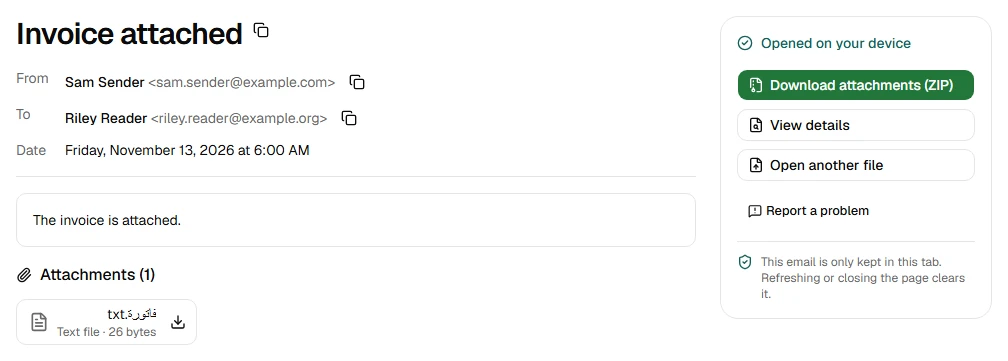
- Read the message with its formatting and the images inside it
- See the sender, recipients, date and every header, in plain text
- Download each attachment with its original name, or all of them as a ZIP
- Read emails in any language, including Arabic and Urdu
- Need a PDF or plain text? Use EML to PDF or EML to TXT
Step by step
- Step 1
Choose your .eml file
Drop it on the box above, or click Choose a file.
- Step 2
Read the email
It opens right here, with the sender, recipients, date and message.
- Step 3
Save the attachments
Download them one by one, or all together as a ZIP.
Supported files and limits
| File | Up to | At a time |
|---|---|---|
| .eml (email) | 50 MB per file | One file |
These are technical limits, so your browser doesn't run out of memory. There's no account, plan or fee.
Troubleshooting
If you see:
This is an MSG file. This tool opens EML files.
What to do: It's an email file, just another format. Open it from the homepage, which recognises every format, or with the tool for that format.
If you see:
This file is named like an EML file, but its contents don't match. It may be damaged or only partly downloaded. Try saving the email again.
What to do: The download was probably interrupted, or the file was renamed. Save or download the email again from where you got it.
If you see:
This is a PDF, not an email file. Choose an EML file.
What to do: Choose the email file itself, not a document that was attached to it or a printout of it.
If you see:
This email file seems to be damaged, so we can't open it. Try saving or downloading the email again.
What to do: Save the email again from the app it came from. If it still won't open, use Report a problem: it sends the error code, never your file.
If you see:
This file is 72.3 MB. Inboxglass opens email files up to 50 MB. If it's a whole mailbox export, open single emails instead.
What to do: Single emails are rarely over 50 MB. If it's a whole mailbox, open it with the MBOX viewer, which takes up to 20 GB.
If you see:
We couldn't read this file. If it's in cloud storage or on a network drive, save it to your device first, then try again.
What to do: Download the file to your computer or phone first (from OneDrive, Google Drive, Dropbox or a network folder), then choose that copy.
If you see:
This email has another email attached. Download it below and open it here to read it.
What to do: Click Download next to the attached email, then drop that file here to read it.
If you see:
Images are hidden to protect your privacy. Showing them can tell the sender you opened this email.
What to do: Click Show images if you trust the sender. It applies to this email only and isn't remembered.
Something else? Use the problem report form. It sends the error code and your description, never your file.
Other ways to do it
New Outlook for Windows and Outlook on the web
Drag the .eml file onto the reading pane. In the new Outlook you can also right-click the file and choose Open with › Outlook (new).
When it makes sense: You already use Outlook and want the email there.
A text editor
An .eml file is plain text, so any text editor shows it, but as raw code, with attachments as long encoded blocks.
When it makes sense: You only need to find a word or check one header quickly.
Your privacy
Your files are processed on your device and never uploaded. The tool runs in a sealed, ad-free area of the page that nothing else on the page can access, and it can't connect to other websites. Nothing about your emails is stored on our domain. We can't see your emails — they never reach our servers.
Check it yourselfFrequently asked questions
How do I open an .eml file?
Drop it on the box at the top of this page, or click Choose a file. It opens in your browser on any computer, tablet or phone, with no email program and no account.
What is an .eml file?
An .eml file is one email saved in the standard internet email format. It holds the whole email: the message, its formatting, its images and its attachments. Many email apps can save emails this way: Gmail's Download message and Apple Mail on a Mac both save an email as an .eml file.
What program opens EML files?
Email apps can, for example the new Outlook for Windows and Outlook on the web, where you drag the file onto the reading pane. Without one, this viewer opens them in any web browser.
How do I view an EML file without Outlook?
Open it here: you see the email as it was sent, with its attachments, and nothing needs installing.
Is my email uploaded anywhere?
No. Your files are processed on your device and never uploaded. We can't see your emails — they never reach our servers. Each tool runs in a sealed, ad-free area of the page that other code on the page can't access, and nothing about your emails is stored on our domain.
Why are some images hidden?
Images loaded from the internet can tell the sender that you opened the email, so they stay hidden until you click Show images. Images included in the email itself always show.
How do I save the email as a PDF?
Use EML to PDF: drop the file and the PDF downloads as soon as the email is read, with the header, message and a list of attachments.
Related tools
Related guides
- MSG vs EML: what's the difference?MSG and EML both hold one email, but they're built very differently. Which apps open them, which to keep, and how to open either.
- Outlook saved your email as EML, but you need MSG: what to doOutlook gave you an .eml file and someone asks for .msg. When EML is fine, what to ask first, and your options with Microsoft's own Outlook apps.
Last updated by The Inboxglass team