
Convert MBOX to PDF
Choose an .mbox mailbox, pick the emails (all of them, a search, or the ones you tick) and get one PDF per email in a ZIP, or one PDF with a cover and contents. Free, with no account.
Quick answer
To convert an MBOX file to PDF, choose the mailbox above, then pick the emails: all of them, a search, or the ones you tick. Get one PDF per email in a ZIP, up to 5,000, or one PDF with a cover and contents, up to 2,000 emails. The mailbox is read on your device, one email at a time.
What you get
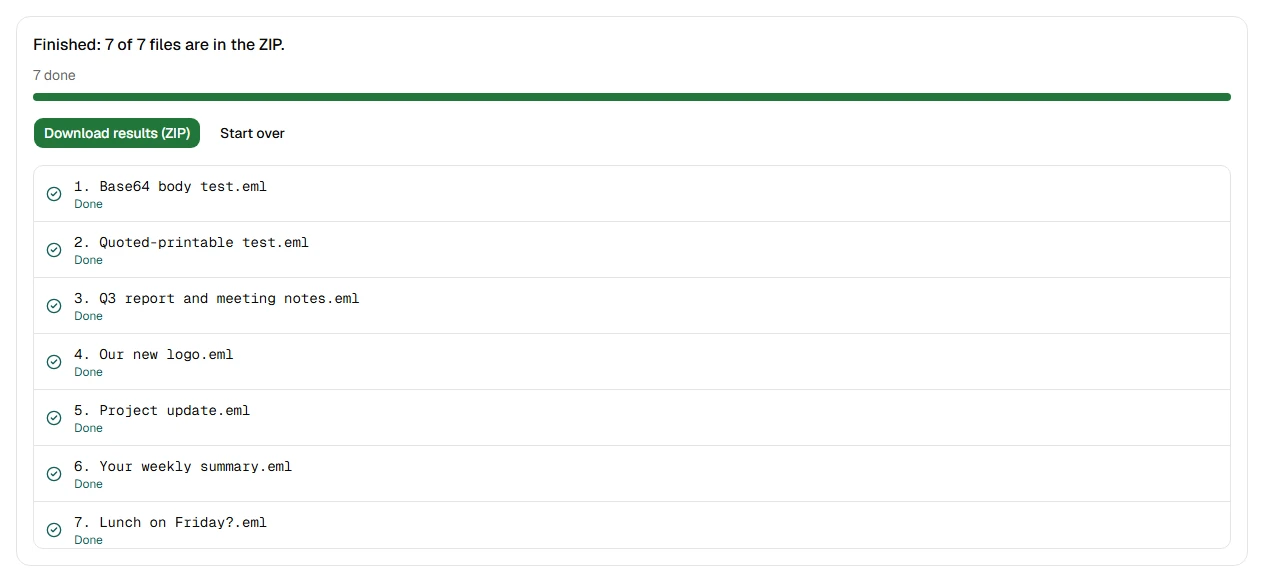
- Export up to 5,000 emails at a time as separate PDFs in one ZIP
- Merge up to 2,000 emails into one PDF with a cover page and contents
- Export only a search, a label, a date range or the emails you tick
- Name the PDFs by subject, date and sender
- Choose A4, Letter or Legal paper
- Watch the progress and cancel at any time
Step by step
- Step 1
Choose your .mbox file
From Gmail Takeout, Thunderbird or Apple Mail. A mailbox you've opened here before is ready at once.
- Step 2
Pick the emails
All of them, the results of a search or filter, or the ones you tick in the list.
- Step 3
Make the PDFs
One PDF per email in a ZIP, up to 5,000, or one PDF with a cover and contents, up to 2,000 emails.
Supported files and limits
| File | Up to | At a time |
|---|---|---|
| .mbox (a whole mailbox) | 20 GB, and 50 MB per email in it | One mailbox |
These are technical limits, so your browser doesn't run out of memory. There's no account, plan or fee.
Troubleshooting
If you see:
This isn't an MBOX mailbox. Choose an .mbox file, like the one in a Gmail Takeout export. For a single email, use the EML viewer.
What to do: In a Google Takeout export, the mailbox is the .mbox file inside the ZIP: unzip it first. From Apple Mail, choose the mbox file inside the exported folder.
If you see:
This file is 24.1 GB. Inboxglass opens mailboxes up to 20 GB. If your export is bigger, choose fewer labels in Google Takeout and export again.
What to do: In Google Takeout, export fewer labels or a shorter period, so each file stays under 20 GB.
If you see:
You chose 6,000 emails. One ZIP can hold up to 5,000 PDFs: narrow the search or filters, or export in parts.
What to do: Search, filter by label or date, or tick fewer emails, then export the rest in a second ZIP.
If you see:
This PDF would have more than 3,000 pages. Choose fewer emails, or make a ZIP of PDFs instead.
What to do: Narrow the search or date range, or choose One PDF per email, in a ZIP, instead of one merged PDF.
If you see:
One of the emails couldn't be read from the mailbox. If the file was moved or changed, choose it again.
What to do: Choose the same mailbox file again, then export again.
Something else? Use the problem report form. It sends the error code and your description, never your file.
Other ways to do it
Thunderbird with ImportExportTools NG
Import the .mbox file with the add-on, then export the folder's messages as PDF files.
When it makes sense: You use Thunderbird already and want the emails there too.
Print from Gmail
Open each email in Gmail and choose More › Print, or Print all for a whole conversation, then print it to a PDF printer.
When it makes sense: The emails are still in Gmail and there are only a few.
Your privacy
Your files are processed on your device and never uploaded. The tool runs in a sealed, ad-free area of the page that nothing else on the page can access, and it can't connect to other websites. Nothing about your emails is stored on our domain. We can't see your emails — they never reach our servers.
Check it yourselfFrequently asked questions
How do I convert an MBOX file to PDF?
Choose the .mbox file on this page, pick the emails, then click Make PDFs for a ZIP of PDFs, or Make one PDF for a single file.
How do I turn my Gmail export into PDFs?
Google Takeout delivers your export as .zip or .tgz files: unzip it first. Then choose the .mbox file here and export all the emails, a label or a search.
Can I export only some emails?
Yes. Search, filter by label, date, sender or attachments, or tick emails in the list, then choose them under What to export. In the MBOX viewer, Export to PDF brings your mailbox and choices here.
One PDF per email, or one merged PDF?
A ZIP of PDFs is best for filing each email on its own, with names that can include the date and sender. One merged PDF is best for reading or sending a set of emails together: it has a cover page, contents with page numbers, and a number on every page.
Can I select or copy the text in the PDFs?
Not yet: each page is a picture of the email, so it looks exactly like it does on screen.
Is my email uploaded anywhere?
No. Your files are processed on your device and never uploaded. We can't see your emails — they never reach our servers. Each tool runs in a sealed, ad-free area of the page that other code on the page can't access, and nothing about your emails is stored on our domain.
Related tools
Last updated by The Inboxglass team