
Merge emails into one PDF
Put a whole conversation, case or project into one PDF: in date order, with a cover page and a table of contents. Free, with no account.
Quick answer
To combine emails into one PDF, drop your .msg and .eml files or their folder, up to 500 at a time, and they're listed by date. Reorder or remove any, choose a cover page and contents, then click Make PDF. Every page is numbered, and the contents show the page each email starts on.
What you get
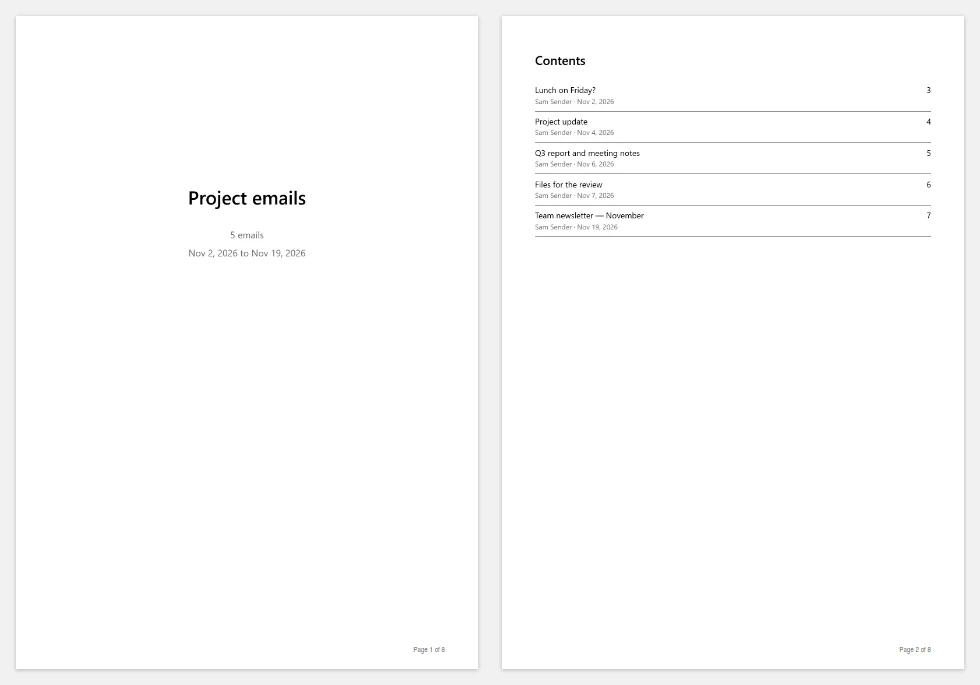
- Merge up to 500 Outlook .msg and .eml emails into one PDF
- Sort them by date, then drag them into any order
- Add a cover page with a title, the date range and the number of emails
- Add a table of contents with the page each email starts on
- Start each email on a new page, or let them follow each other
- Keep Arabic, Urdu and other languages reading the right way
Step by step
- Step 1
Drop your emails or a folder
MSG and EML files, up to 500 at a time. They're listed by date, oldest first.
- Step 2
Put them in order
Drag an email, use the arrows, or remove the ones you don't need. Then choose a cover page, contents and paper size.
- Step 3
Make the PDF
Click Make PDF. Every email is drawn on your device, and the PDF downloads when it's ready.
Supported files and limits
| File | Up to | At a time |
|---|---|---|
| .msg (Outlook email) | 50 MB per file | Up to 500 emails, 1,000 pages in one PDF |
| .eml (email) | 50 MB per file | Up to 500 emails, 1,000 pages in one PDF |
| .oft (Outlook template) | 50 MB per file | Up to 500 emails, 1,000 pages in one PDF |
| .emlx and .partial.emlx (Apple Mail) | 50 MB per file | Up to 500 emails, 1,000 pages in one PDF |
These are technical limits, so your browser doesn't run out of memory. There's no account, plan or fee.
Troubleshooting
If you see:
This PDF would have more than 1,000 pages. Remove some emails and try again.
What to do: Remove some emails, or turn off Start each email on a new page so shorter emails share pages. For a long case, make one PDF per period.
If you see:
One of the emails couldn't be read again. Remove it and try again.
What to do: The file was moved or changed after you added it. Remove that email from the list, add it again, then make the PDF.
If you see:
This email file seems to be damaged, so we can't open it. Try saving or downloading the email again.
What to do: Save the email again from the app it came from. If it still won't open, use Report a problem: it sends the error code, never your file.
If you see:
This is a PDF, not an email file. Choose an MSG, EML, OFT or EMLX file.
What to do: Choose the email file itself, not a document that was attached to it or a printout of it.
If you see:
This file is 72.3 MB. Inboxglass opens email files up to 50 MB. If it's a whole mailbox export, open single emails instead.
What to do: Single emails are rarely over 50 MB. If it's a whole mailbox, open it with the MBOX viewer, which takes up to 20 GB.
Something else? Use the problem report form. It sends the error code and your description, never your file.
Other ways to do it
Print a conversation from Gmail
In Gmail, open the conversation and click Print all to print every email in it.
When it makes sense: The emails are one thread, still in your mailbox, and you don't need a cover or contents.
Make PDFs, then combine them
Convert each email to PDF, then combine the files into one PDF in Preview on a Mac or in Adobe Acrobat.
When it makes sense: You already have the PDFs, or need text you can select.
Your privacy
Your files are processed on your device and never uploaded. The tool runs in a sealed, ad-free area of the page that nothing else on the page can access, and it can't connect to other websites. Nothing about your emails is stored on our domain. We can't see your emails — they never reach our servers.
Check it yourselfFrequently asked questions
How do I combine multiple emails into one PDF?
Drop the email files here, put them in the order you want, and click Make PDF. You get one PDF with a cover page, contents and every email.
How do I save an email thread as one PDF?
Save each email of the thread as a file (.msg or .eml), then drop them all here. They're sorted by date, oldest first, so the thread reads in order.
How do I make one PDF of emails for a legal case?
Merge them here with a cover page (a title such as the case name), the contents and page numbers. Each email shows its full header. For evidence rules, ask the court or your lawyer what they need.
Can I change the order?
Yes. The emails are listed by date, oldest first, or newest first if you choose. Drag an email to a new place, or use its up and down arrows. You can also remove emails you don't need.
Are the page numbers in the contents right?
Yes. Every email is drawn first, so Inboxglass knows where each one starts. Then the contents are drawn twice: once to see how many pages they take, and once with the real page numbers.
Can I select or copy the text in the PDF?
Not yet: each page is a picture of the email, so it looks exactly like it does on screen. If you need the text, use MSG to TXT or EML to TXT.
Is my email uploaded anywhere?
No. Your files are processed on your device and never uploaded. We can't see your emails — they never reach our servers. Each tool runs in a sealed, ad-free area of the page that other code on the page can't access, and nothing about your emails is stored on our domain.
Related tools
Last updated by The Inboxglass team