
Export emails to Excel or CSV
One row per email, with its date, sender, recipients, subject and attachments, from email files or a whole mailbox. Free, with no account.
Quick answer
To export emails to Excel, drop up to 500 .msg, .eml or .emlx files, or open an .mbox mailbox and pick up to 100,000 emails. Choose Excel (.xlsx) or CSV and the time zone, and you get one row per email: date, sender, recipients, subject, attachments, size and source file. Formulas hidden in emails can't run in the spreadsheet.
What you get
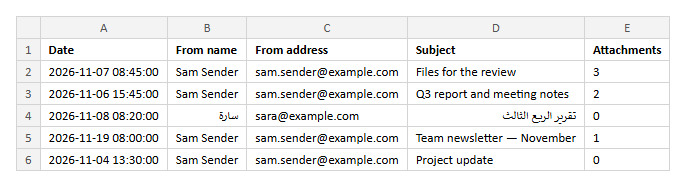
- List up to 500 email files, or up to 100,000 emails from a mailbox
- Get the date, sender's name and address, To, Cc, subject, attachments, size and source file
- Add the first 200 characters of each email's text
- Show dates in any time zone, as real dates Excel can sort
- Keep Arabic, Urdu and every other language readable in Excel
- Stay safe from formulas hidden in subjects or names
Step by step
- Step 1
Choose your emails
Drop up to 500 MSG, EML or EMLX files, or open an MBOX mailbox and pick emails by search, filter or tick.
- Step 2
Choose the spreadsheet
Excel (.xlsx) or CSV, the time zone for dates, and whether to add the start of each email's text.
- Step 3
Download it
One row per email, ready to sort and filter.
Supported files and limits
| File | Up to | At a time |
|---|---|---|
| .msg (Outlook email) | 50 MB per file | Up to 500 files, 2 GB in total |
| .eml (email) | 50 MB per file | Up to 500 files, 2 GB in total |
| .emlx and .partial.emlx (Apple Mail) | 50 MB per file | Up to 500 files, 2 GB in total |
These are technical limits, so your browser doesn't run out of memory. There's no account, plan or fee.
Troubleshooting
If you see:
You chose 612 files. You can open up to 500 at a time. Choose fewer, then add the rest as another batch.
What to do: Split them into folders of up to 500 files and run one batch per folder.
If you see:
These files add up to 2.4 GB. You can open up to 2 GB at a time. Choose fewer, then add the rest as another batch.
What to do: Run the files in two or more batches. Each batch makes its own ZIP.
If you see:
You chose 150,000 emails. One spreadsheet can hold up to 100,000: narrow the search or filters, or split the mailbox first.
What to do: Filter by label or date, or split the mailbox with Split MBOX, then make one spreadsheet per part.
If you see:
This email file seems to be damaged, so we can't open it. Try saving or downloading the email again.
What to do: Save the email again from the app it came from. If it still won't open, use Report a problem: it sends the error code, never your file.
If you see:
This is a PDF, not an email file. Choose an MSG, EML or EMLX file.
What to do: Choose the email file itself, not a document that was attached to it or a printout of it.
If you see:
This file is 72.3 MB. Inboxglass opens email files up to 50 MB. If it's a whole mailbox export, open single emails instead.
What to do: Single emails are rarely over 50 MB. If it's a whole mailbox, open it with the MBOX viewer, which takes up to 20 GB.
Something else? Use the problem report form. It sends the error code and your description, never your file.
Other ways to do it
Thunderbird with ImportExportTools NG
The add-on exports a folder's messages, or an index of them, as a CSV file.
When it makes sense: The emails are in Thunderbird already.
Type the rows yourself
Open each email and copy its date, sender and subject into the spreadsheet by hand.
When it makes sense: You only need a handful of rows.
Your privacy
Your files are processed on your device and never uploaded. The tool runs in a sealed, ad-free area of the page that nothing else on the page can access, and it can't connect to other websites. Nothing about your emails is stored on our domain. We can't see your emails — they never reach our servers.
Check it yourselfFrequently asked questions
How do I export emails to Excel?
Drop the email files here, or open an .mbox mailbox, choose Excel or CSV, and click Make spreadsheet. You get one row per email.
How do I convert an MBOX file to CSV?
Choose An MBOX mailbox under Emails from, pick all emails, a search or the ones you tick, then choose CSV. In the MBOX viewer, Export to Excel brings your choices here.
Which columns are in the spreadsheet?
Date, sender's name, sender's address, To, Cc, subject, number of attachments, attachment names, size in bytes and the file it came from. You can add the first 200 characters of each email's text.
Why do some cells start with an apostrophe in the CSV?
Cells that begin with =, +, - or @ could run as formulas in Excel. The apostrophe makes Excel show them as text instead. The Excel (.xlsx) file stores them as text without one.
Which time zone are the dates in?
Your device's, unless you choose another, such as UTC. In the Excel file they're real dates, so you can sort and filter by them.
Is my email uploaded anywhere?
No. Your files are processed on your device and never uploaded. We can't see your emails — they never reach our servers. Each tool runs in a sealed, ad-free area of the page that other code on the page can't access, and nothing about your emails is stored on our domain.
Related tools
Last updated by The Inboxglass team