
How to open an MSG file on a Mac
Got an Outlook .msg file on your Mac and nothing opens it? How to read it, save its attachments and keep a PDF copy, step by step.
Quick answer
If your Mac won't open an Outlook .msg file, read it in your browser instead: drop it into the MSG viewer to see the email and download its attachments. There's nothing to install, and your files are processed on your device and never uploaded.
On this page (7)
Someone sent you an email file that ends in .msg, and your Mac doesn't know what to do with it. Double-clicking does nothing useful. This guide shows you how to read it, save its attachments and keep a copy, in a few minutes and without installing anything.
Why your Mac can't open it
A .msg file is one email saved by Microsoft Outlook. Microsoft's own specification calls it the Outlook Item file format: the format Outlook uses to store a single item, such as one email, as a file.
The file holds everything from the original email: who sent it, who it went to, the date, the message itself and any attachments. The problem is the packaging. It's Microsoft's own format, made for Outlook.
If none of the apps on your Mac understands that format, your Mac shows you an icon and nothing else.
Nothing is wrong with the file, and nothing is wrong with your Mac. You just need something that understands the format.
Open it in your browser
The quickest way is to open the file in your web browser. You don't need Outlook, an account or an app.
- Go to the MSG viewer on Inboxglass.
- Drag the .msg file onto the box, or click Choose a file and pick it from your Downloads folder.
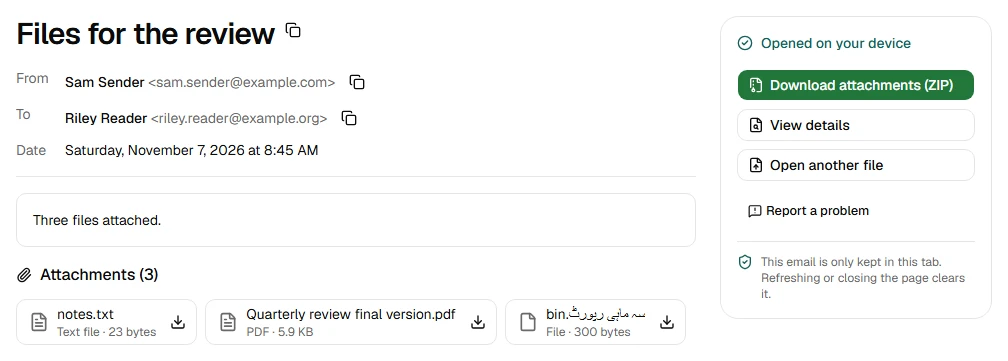
- The email opens on the page: subject, sender, recipients, date, the message and a list of attachments.

Your files are processed on your device and never uploaded. The page reads the file inside your browser, so the email stays on your Mac. When you close the tab, it's gone from the page.
Some emails contain images from the internet, such as logos in a newsletter. These stay hidden at first, because loading them can tell the sender you opened the email. If you want to see them, click Show images above the message.
Save the attachments
Often the real reason you need the email is what's attached to it: a contract, an invoice, some photos.
- Open the .msg file as above.
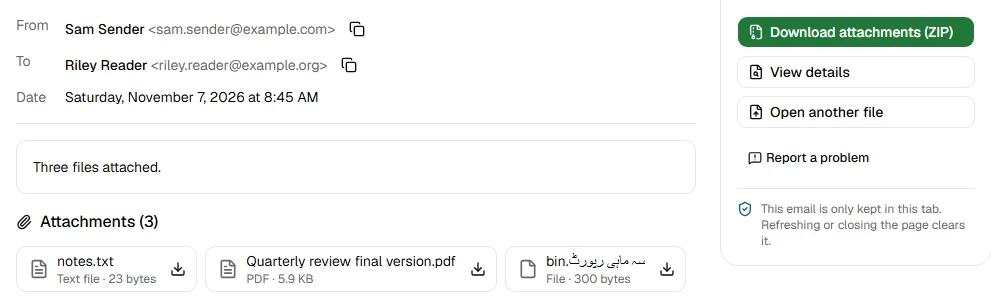
- Under the message, find the attachment you need and click Download.
- To get all of them at once, click Download attachments (ZIP) next to the email.
The files are saved with their original names, exactly as the sender attached them.
Be careful with attachments that can run programs, like files ending in .exe or .js. Inboxglass shows a warning under these. Only open them if you trust the sender.
Keep a copy as a PDF
If you need to keep the email for your records, send it to someone who also uses a Mac, or attach it to a case file, a PDF is easier than a .msg file. Anyone can open a PDF.
- Go to MSG to PDF on Inboxglass.
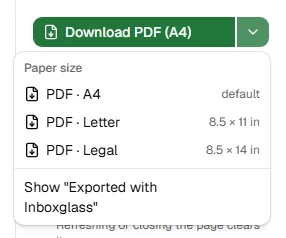
- Drop your .msg file on the box. The PDF downloads straight away, on A4 paper.
- Need US Letter or Legal paper? Click the arrow beside Download PDF (A4) and pick the size.
Need the email as plain text or a web page instead? MSG to TXT and MSG to HTML work the same way.
The PDF shows the sender, recipients, date and subject at the top, then the message, then a list of attachments. It's made on your device, like everything else.
Other ways to open it
The browser is the quickest option for one file, but there are others.
Ask the sender to forward the email instead. If they forward the original email rather than attaching a saved copy, it arrives in your inbox like any other email. This is often the simplest fix when you'll receive more of these.
Ask for a PDF. If the sender only needs you to read the email, a PDF works on every device.
Open it in Outlook on the web. Microsoft says you can open a saved .msg file in Outlook on the web by dragging it onto the reading pane. This needs an account with a qualifying Microsoft 365 subscription.
Use a Windows computer with the new Outlook. If you have access to one, the new Outlook for Windows can open a .msg file when you drag it onto the reading pane, or right-click it and choose Open with › Outlook (new). The same Microsoft 365 subscription is needed.
Install an app. There are Mac apps that open .msg files. Check what they do with your files before you install one, especially for private emails.
If the file still won't open
If the viewer says the file can't be opened, it's usually one of these:
- It isn't really a .msg file. Some files are named .msg but contain something else. The viewer tells you what it found.
- It's damaged or incomplete. The download may have stopped part way. Download or save the email again and try once more.
- It's in cloud storage. If the file is in iCloud Drive, OneDrive or Dropbox and hasn't fully downloaded, save it to your Mac first.
If none of that helps, use Report a problem on the result screen. It sends us the type of error, never your file.
Sources
- Microsoft Learn: [MS-OXMSG]: Outlook Item (.msg) File Format
- Microsoft Support: Open .eml, .msg, and .oft files in new Outlook and Outlook on the web
Try the tool
MSG viewer
Read Outlook .msg emails and save their attachments. No account needed.
Your files are processed on your device and never uploaded.
Also for this:MSG to PDF